


To help users interact with the Willow app, we've compiled a how-to for the most common tasks.
Browse Plants
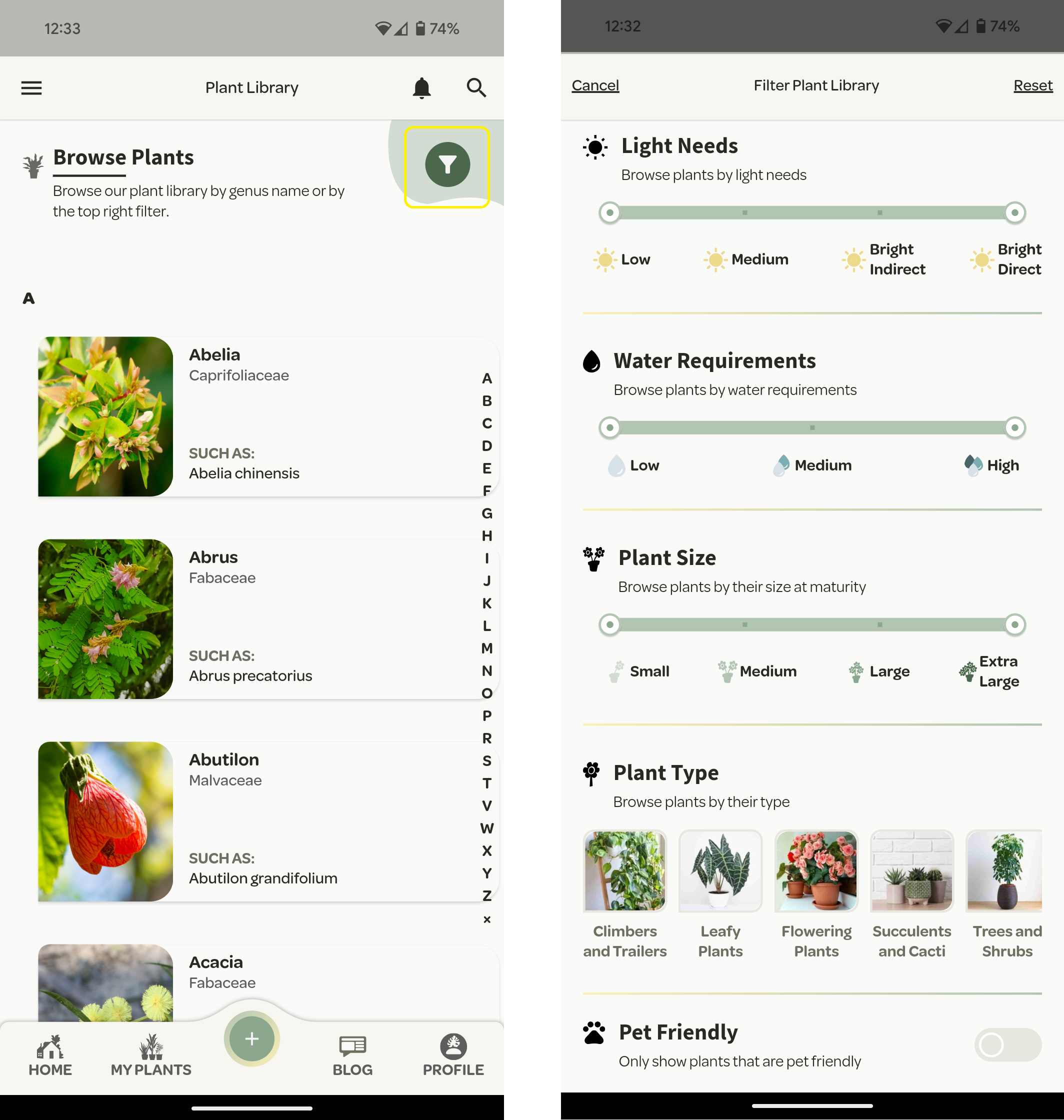
Our plant library can be accessed from the '+' icon in the bottom navigation menu or from the 'My Plants' page
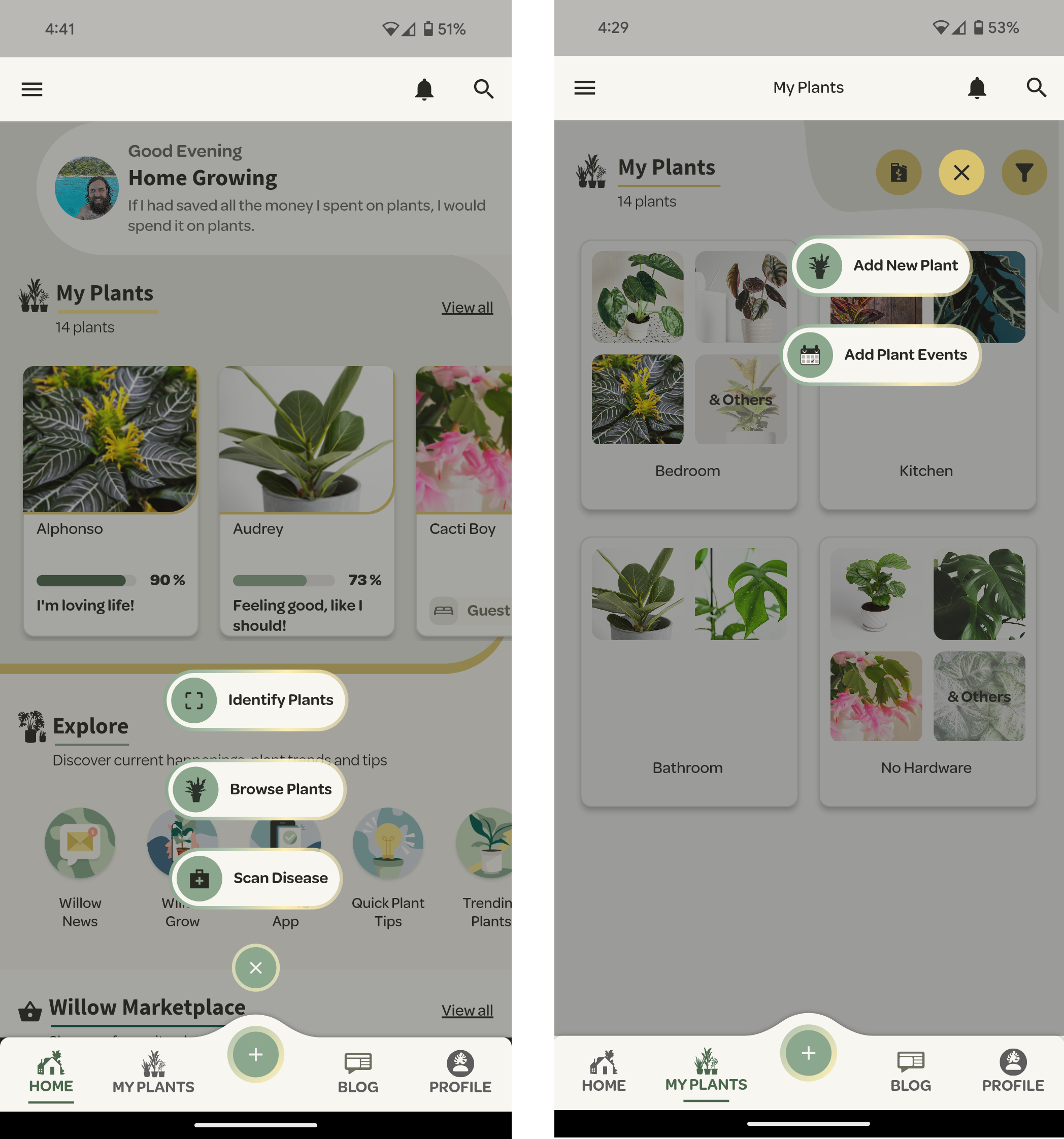
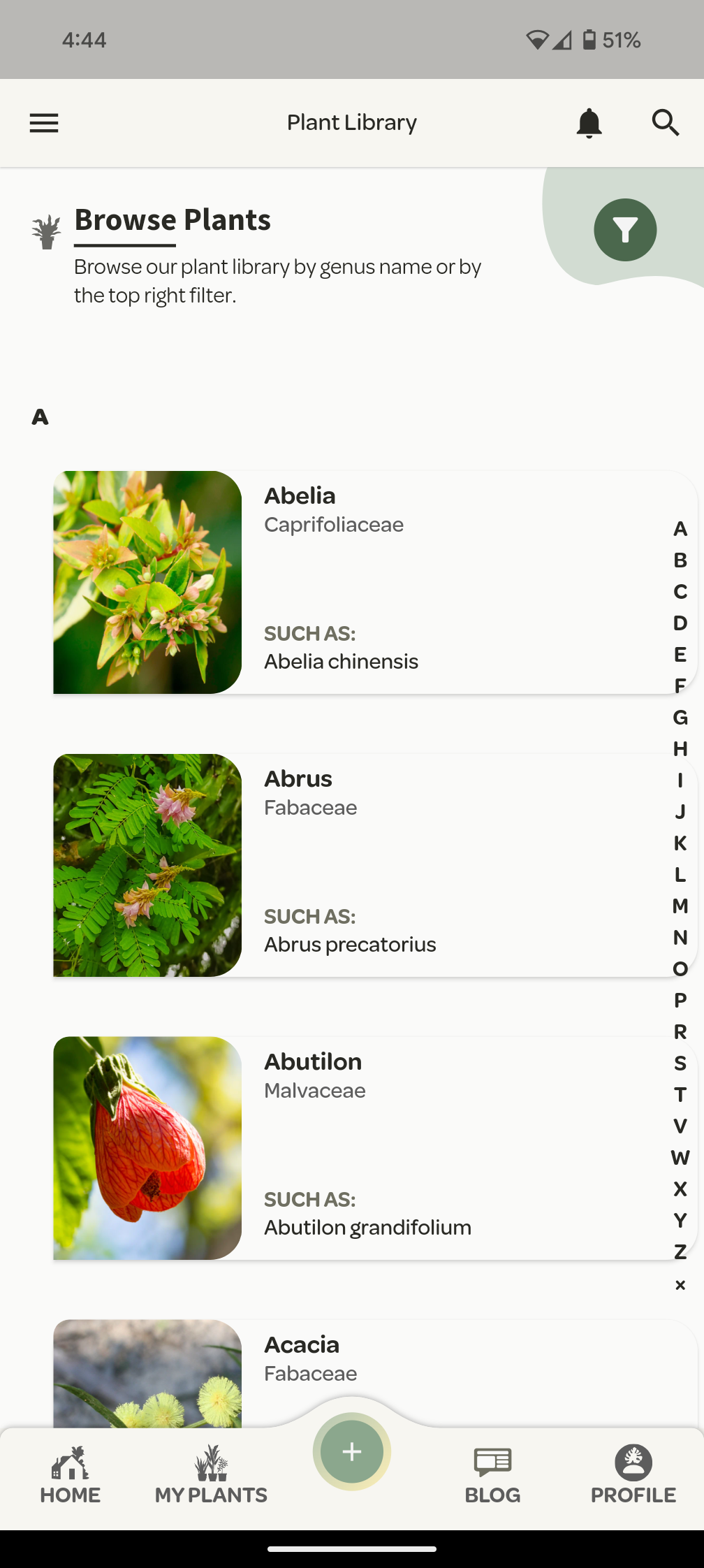
Our Plant Library is organised in alphabetical order by the plant genus.
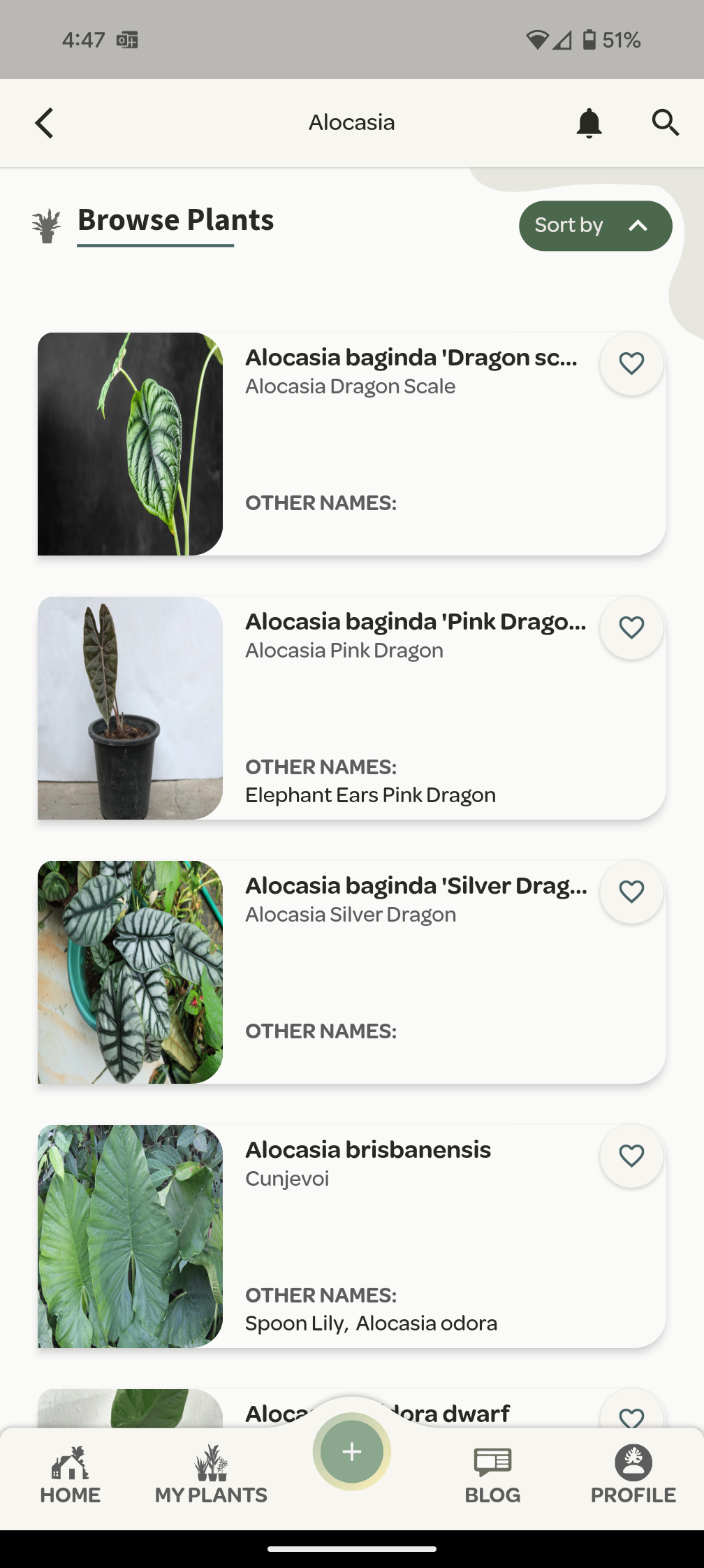
You can select a genus such as Alocasia and all the varieties of Alocasia will appear.
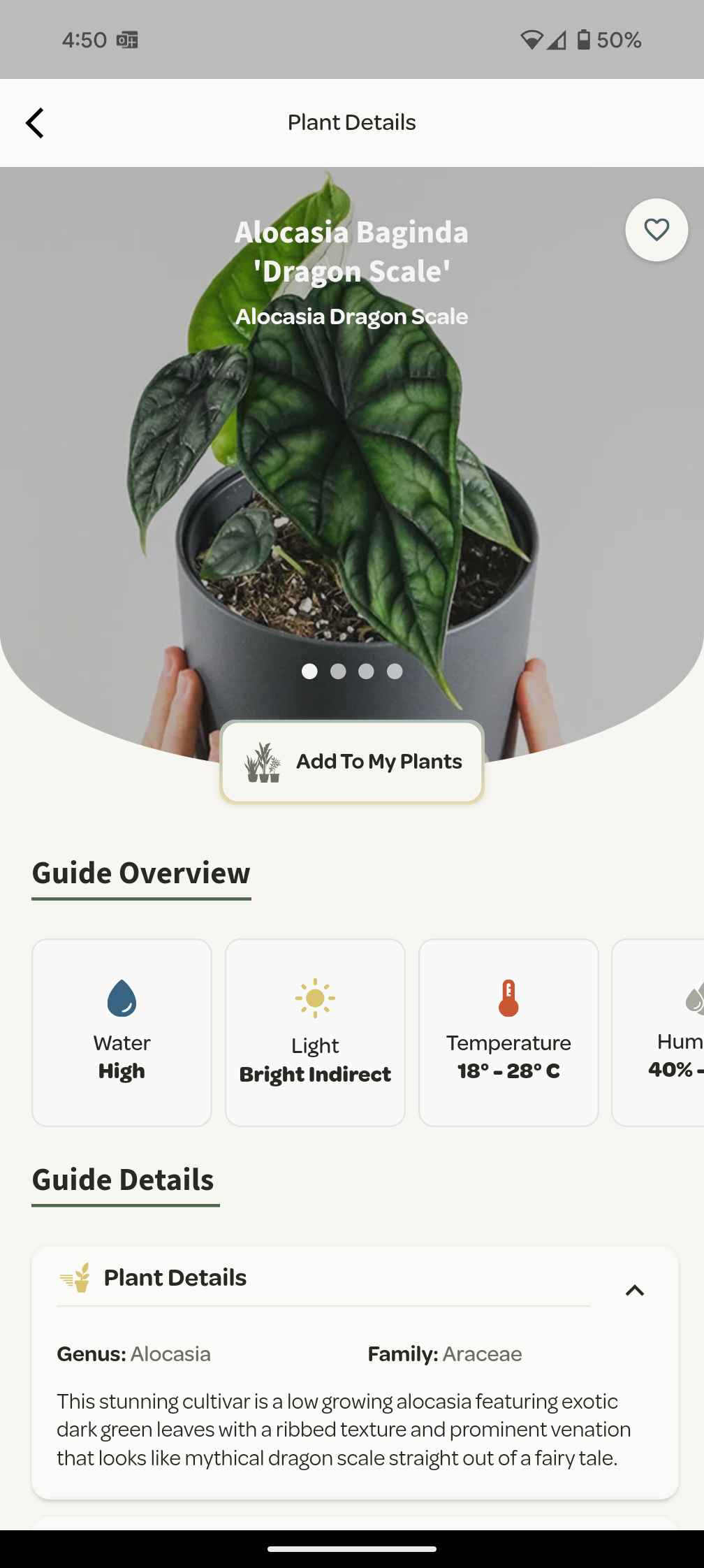
From here, you can choose your desired plant to access the plant’s care guides.
When browsing our plant library, you can also choose to filter the plants to suit your preferences
Scan Plants
Giving your plant the right care starts with knowing what you have. With our Plant ID feature, you can identify your plant in seconds. Just scan, tap, and get the answer. Another way Willow takes the guesswork out of plant care.
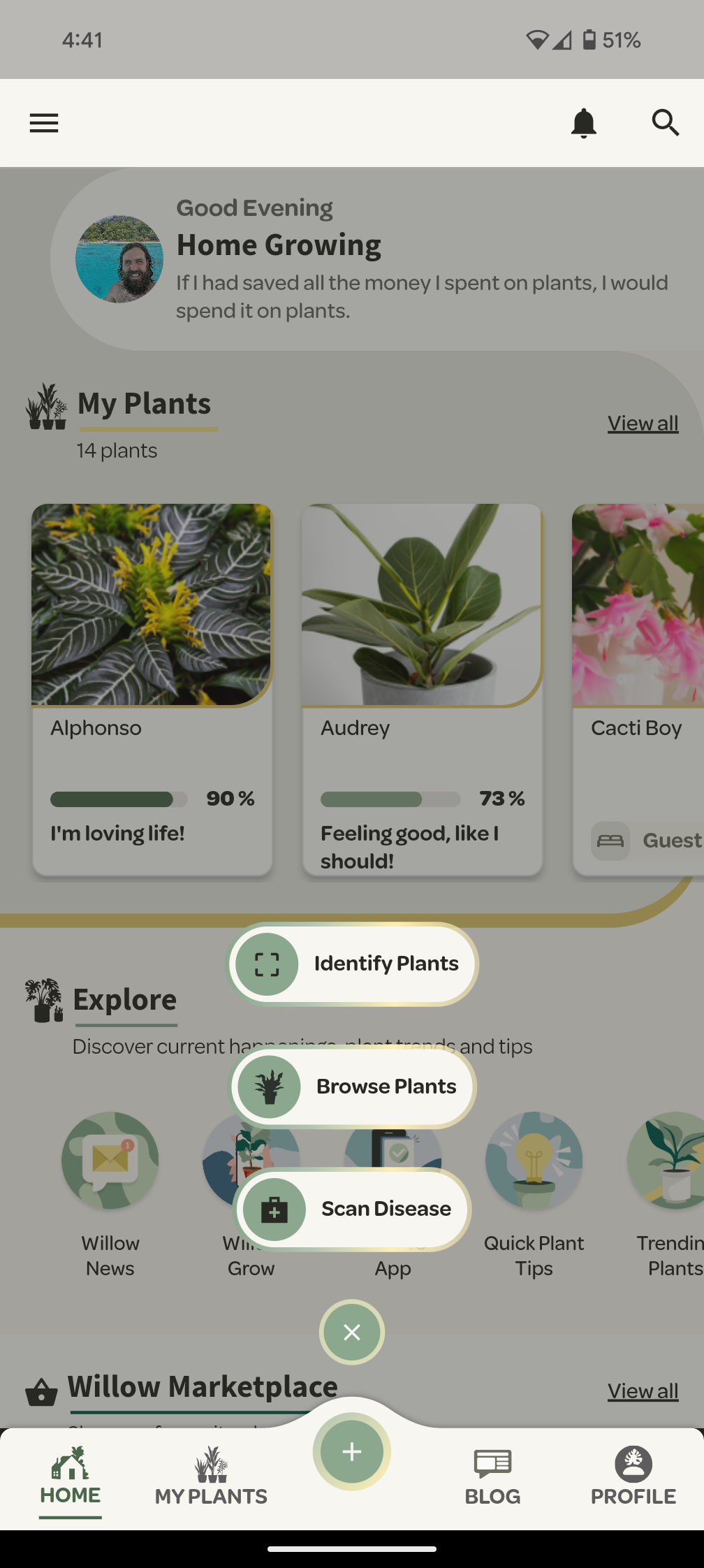
To scan your plant, press the ‘+’ icon in the bottom navigation menu and then select ‘Identify Plants’
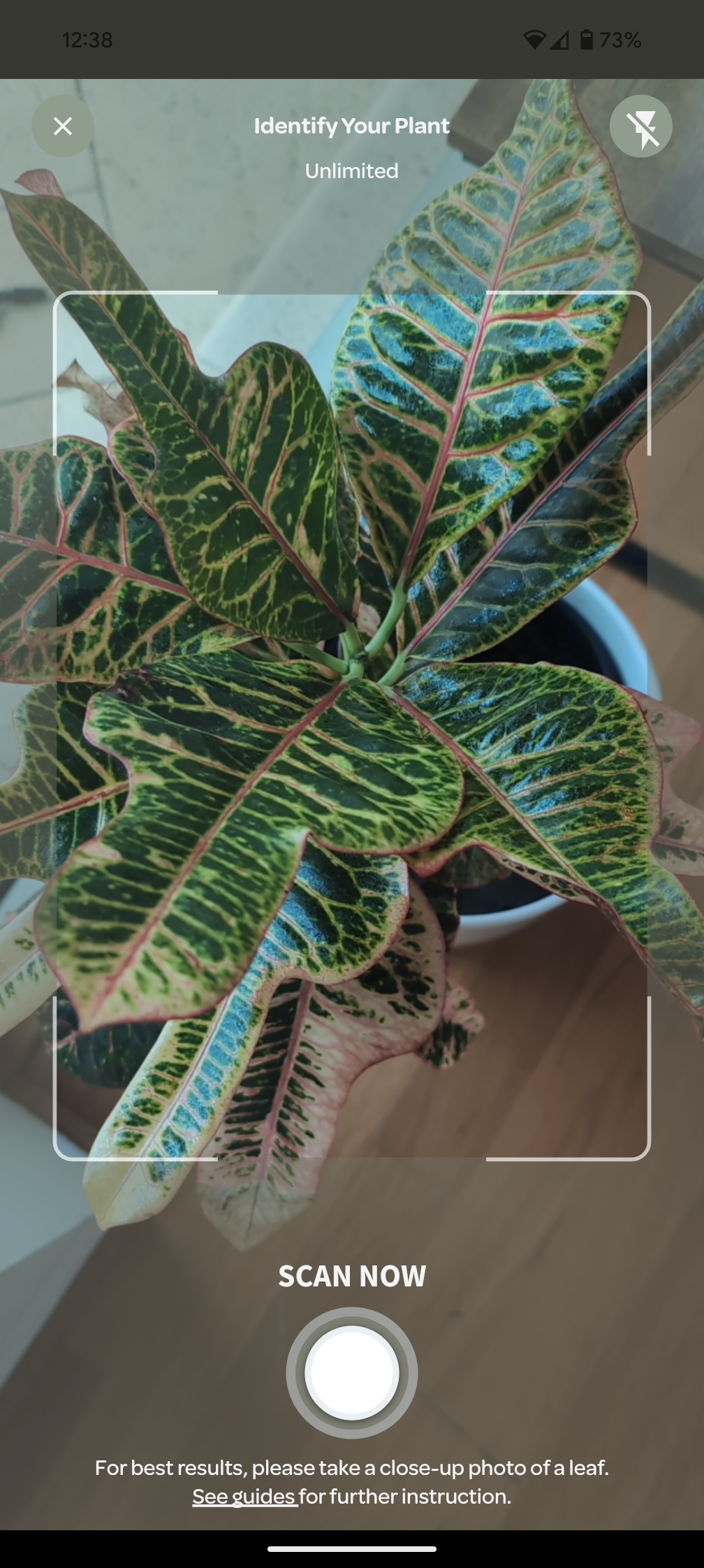
Focus on a leaf of the plant and press ‘Scan Now’.
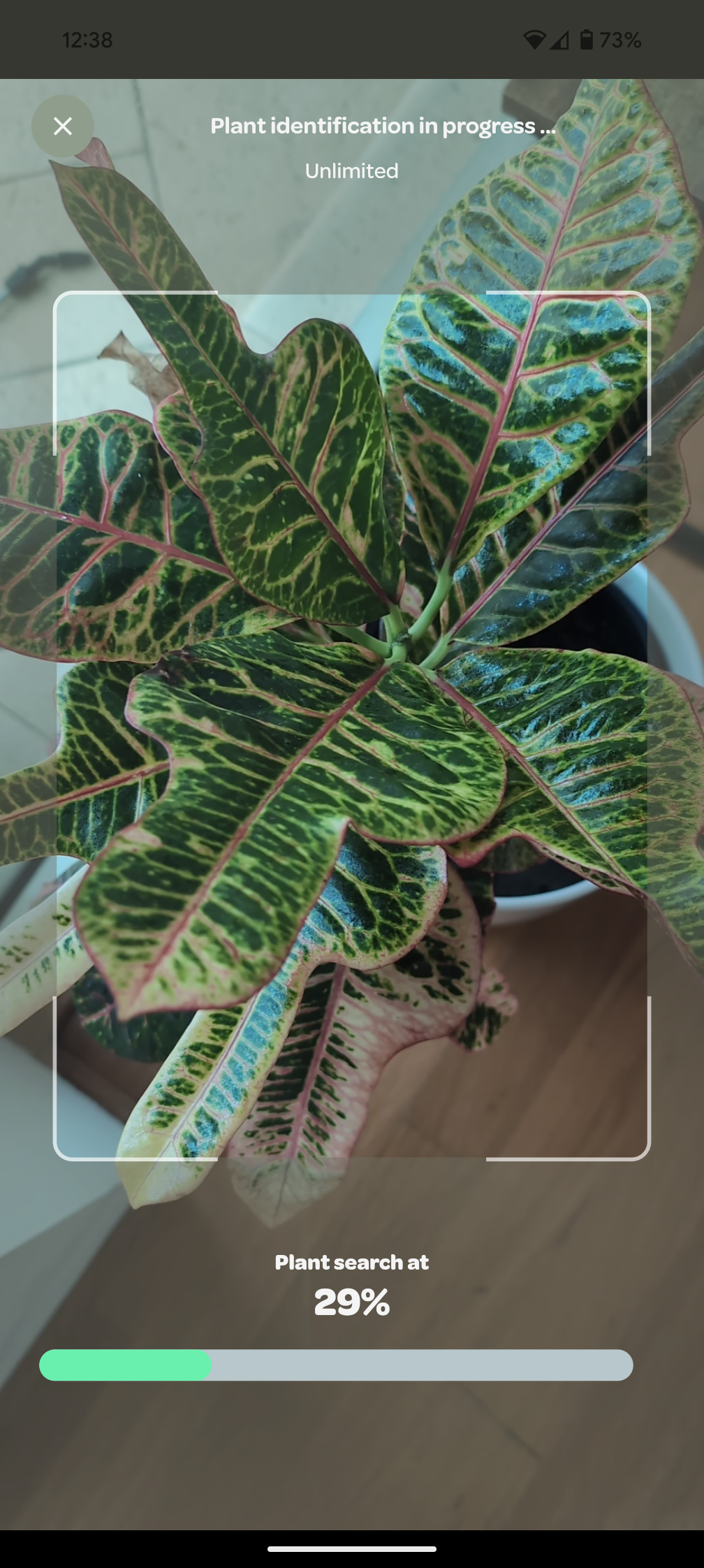
The scanning process only takes a few seconds, upon which you will be presented the most likely results.
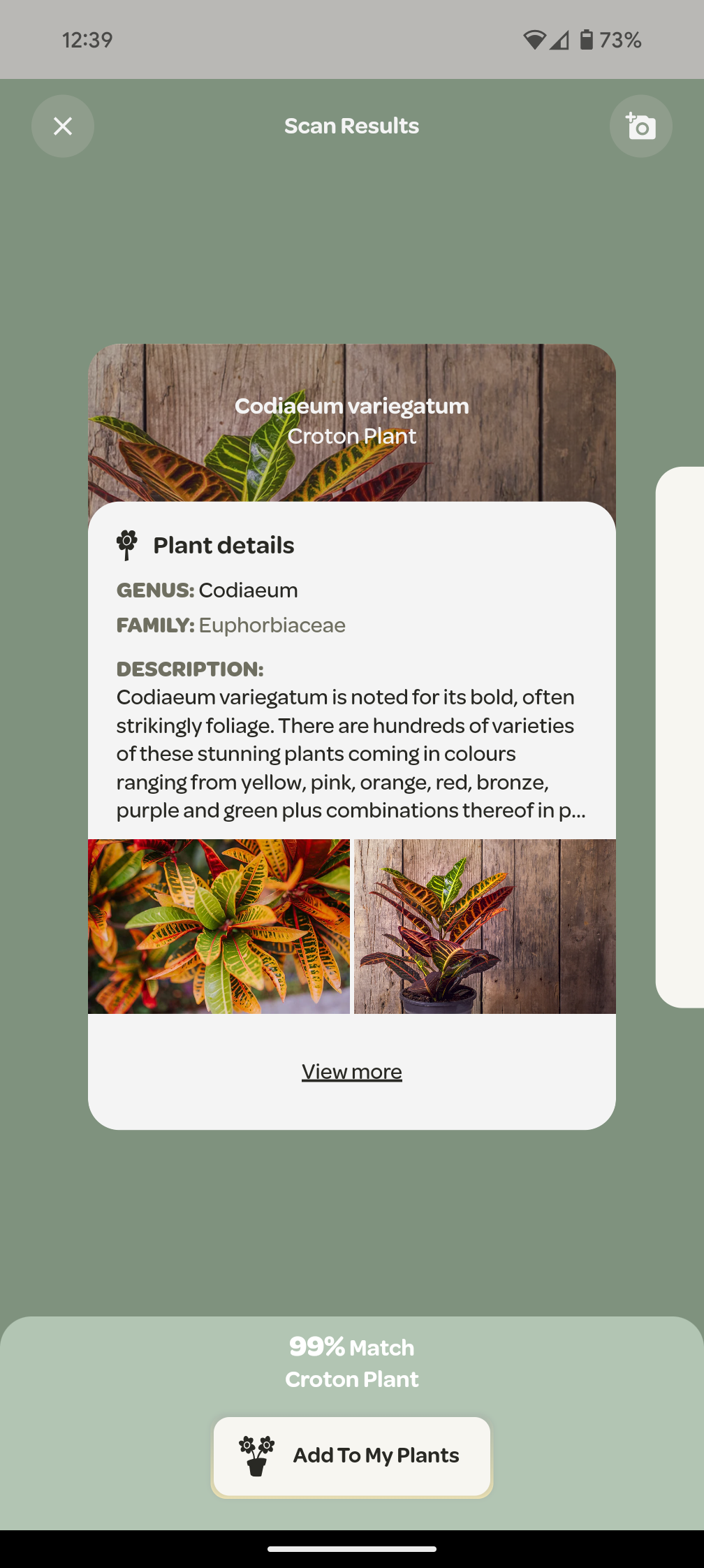
You can then view the plants care guides and/or add the plant to your ‘My Plant’ section.
Add Plant To ‘My Plants’
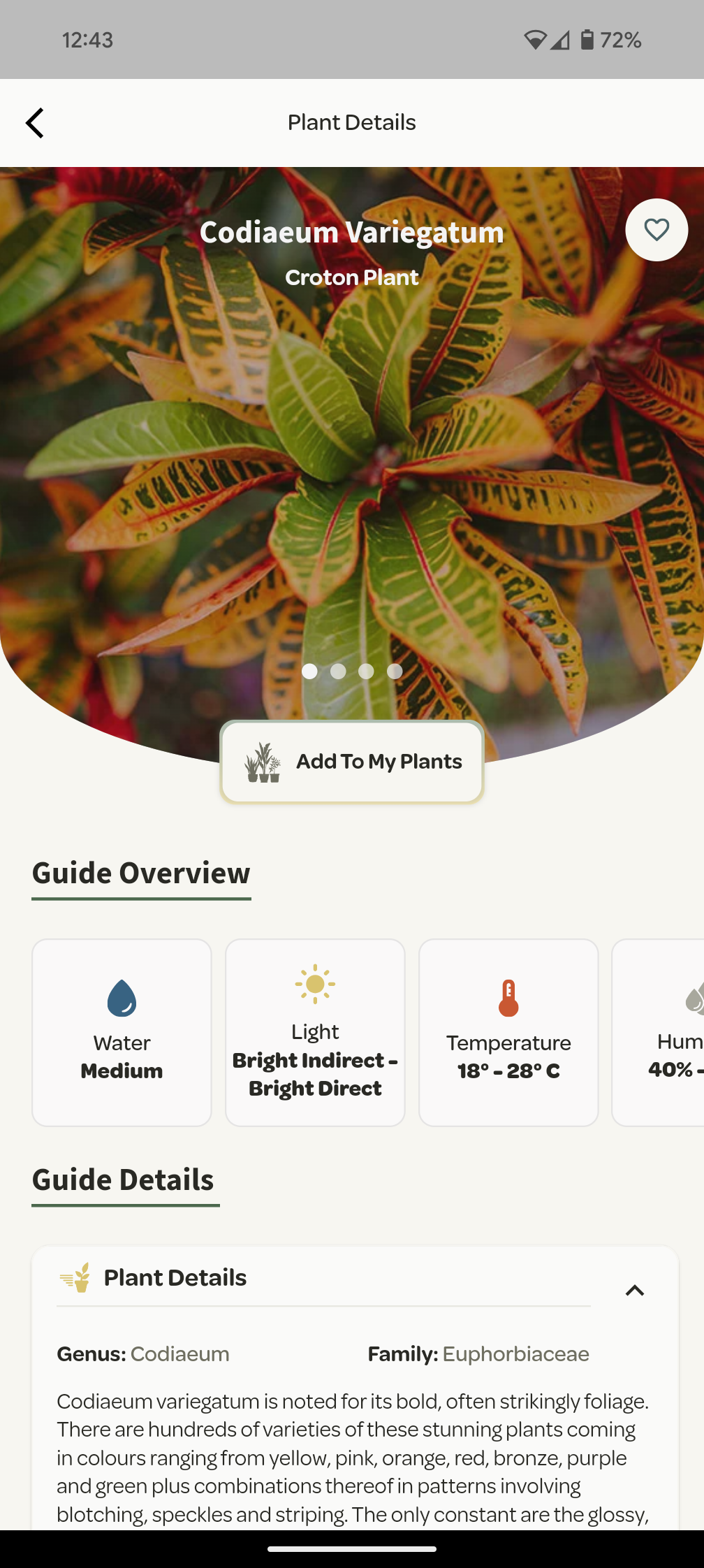
First find the desired plant in our plant library and visit the plant’s details. From there, select the ‘Add To My Plants’ Button.
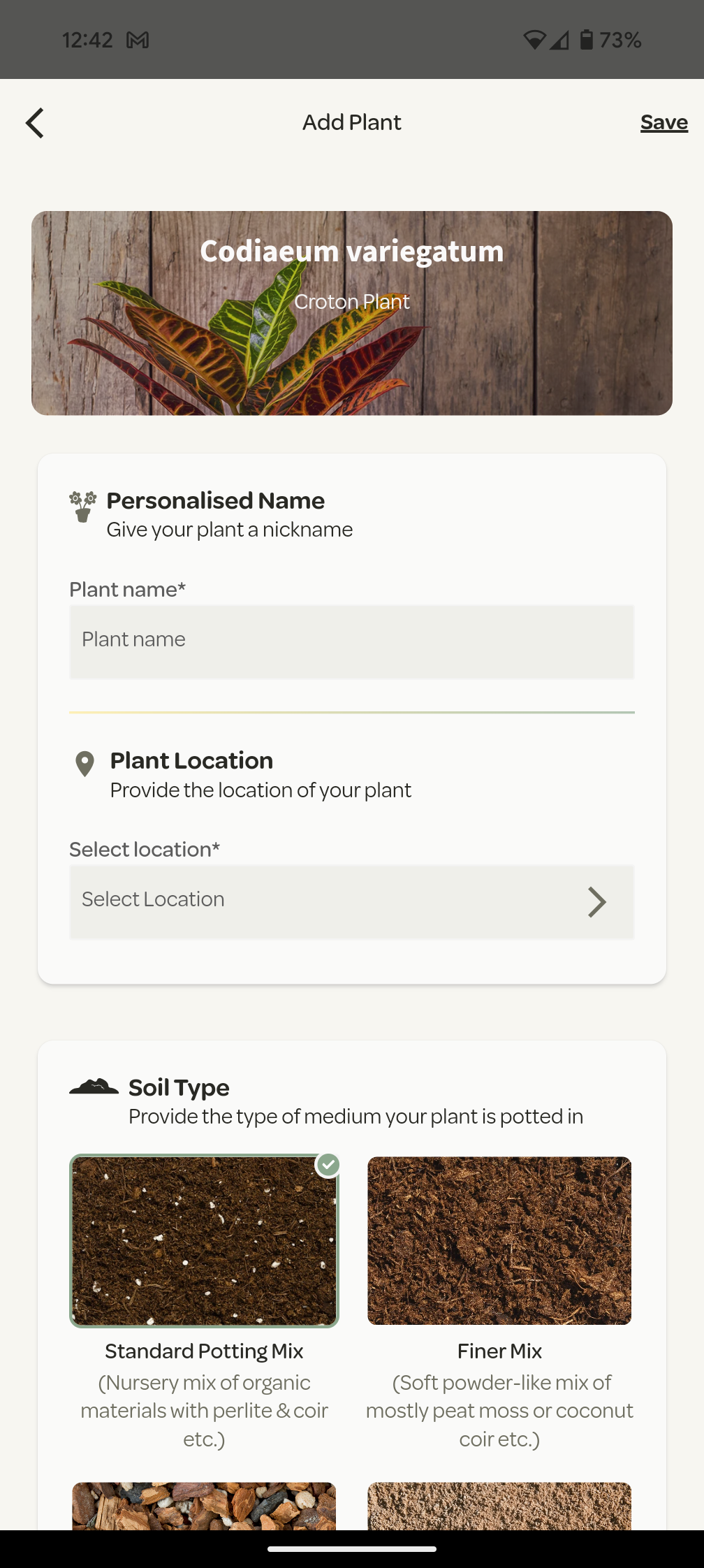
Here you will be prompted to first provide a name and the location of your plant.
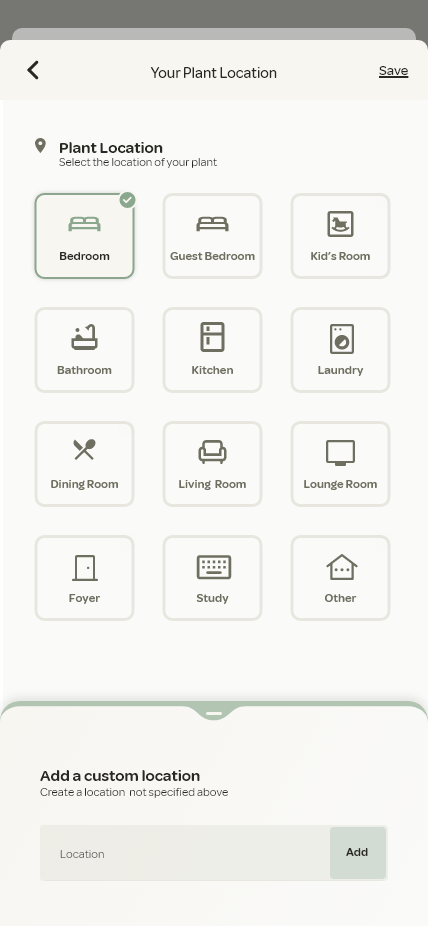
You may also choose to add a custom location by selecting the 'Other' Icon and then providing the location.
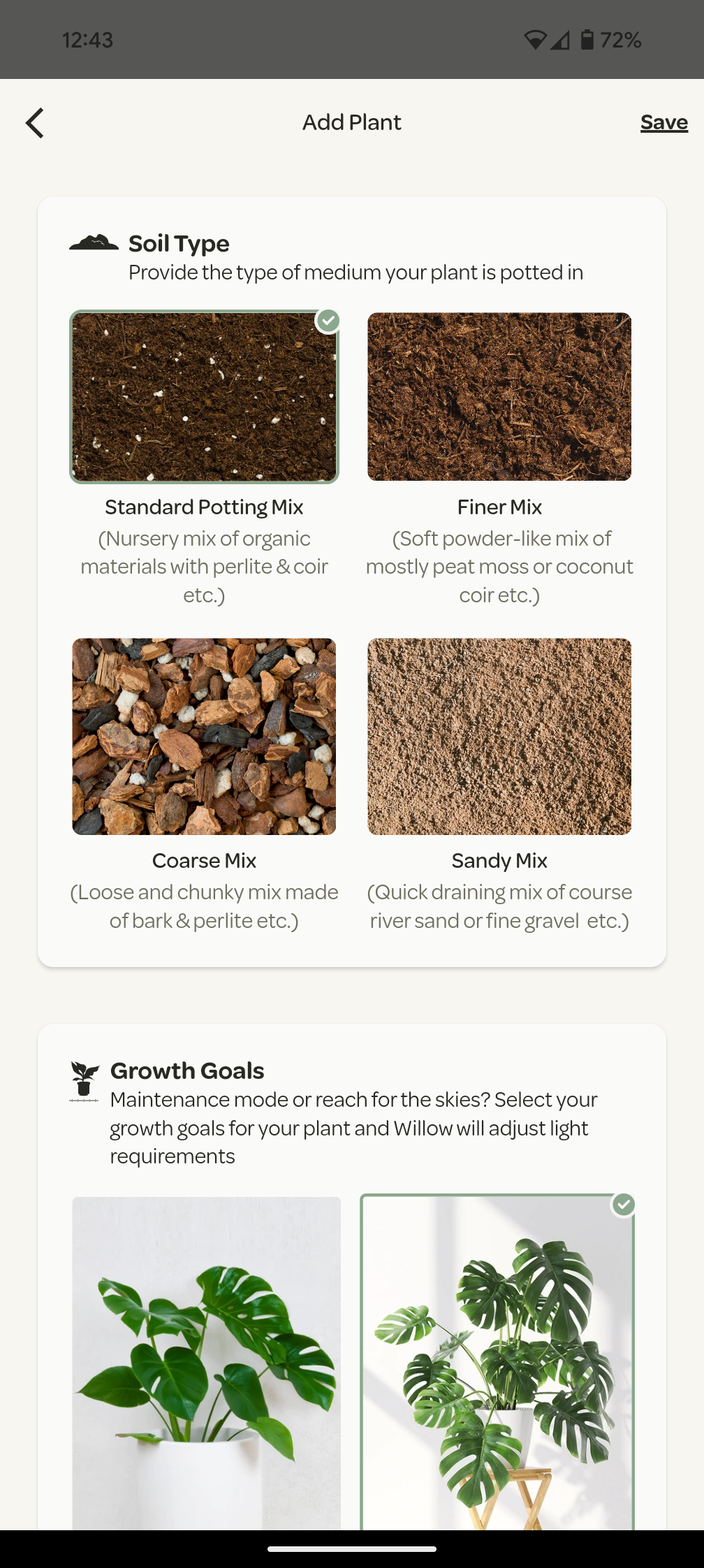
Important for those with a Willow Sensor, is to next provide the soil type & growth goals for your plant.
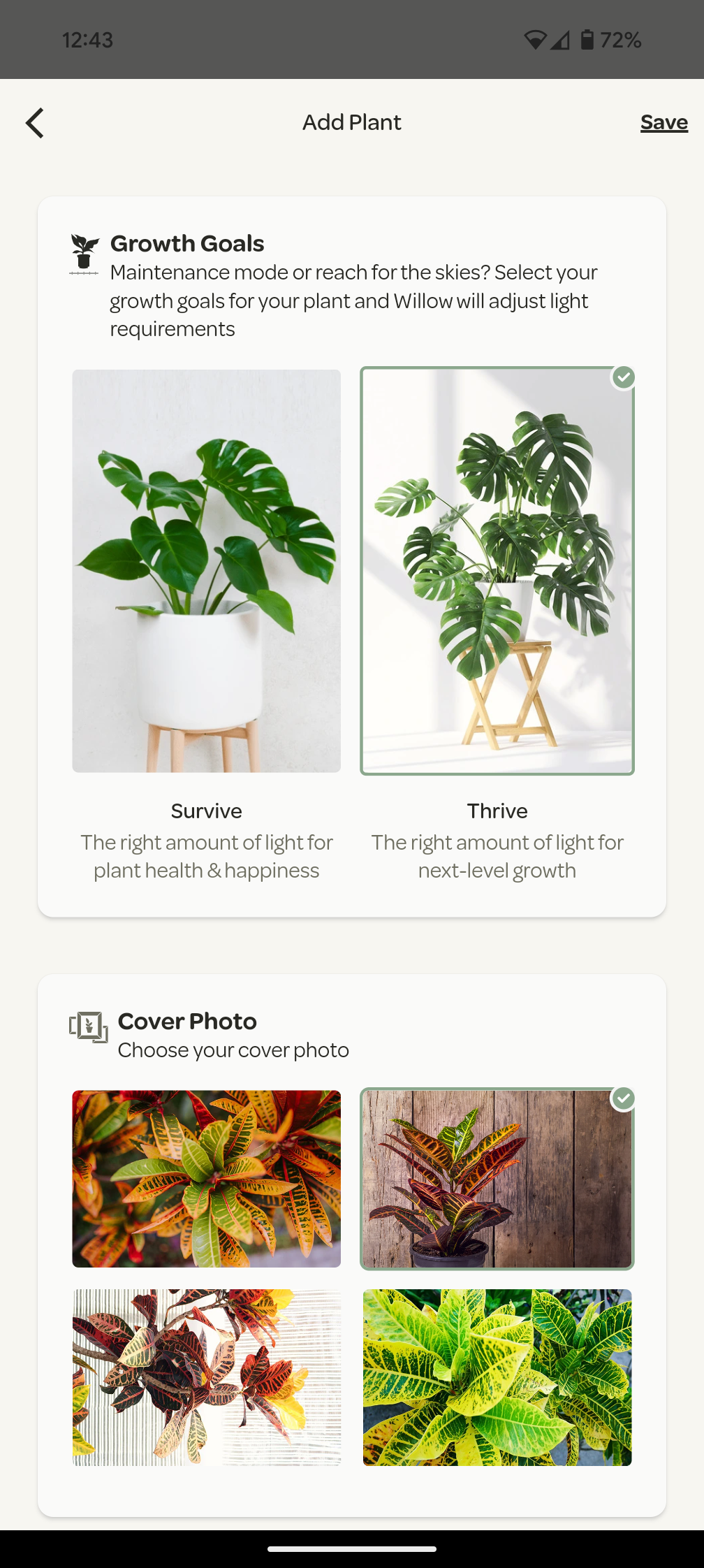
You may also choose your preferred profile photo for the plant.
With your plant added to your ‘My Plant’ section, you can easily revisit it’s care information as well as track it’s growth by adding events, notes and photos.

