

To help users interact with the Willow app, we've compiled a how-to for the most common tasks. This guide assumes you have already added a plant to your collection.
Edit Plant
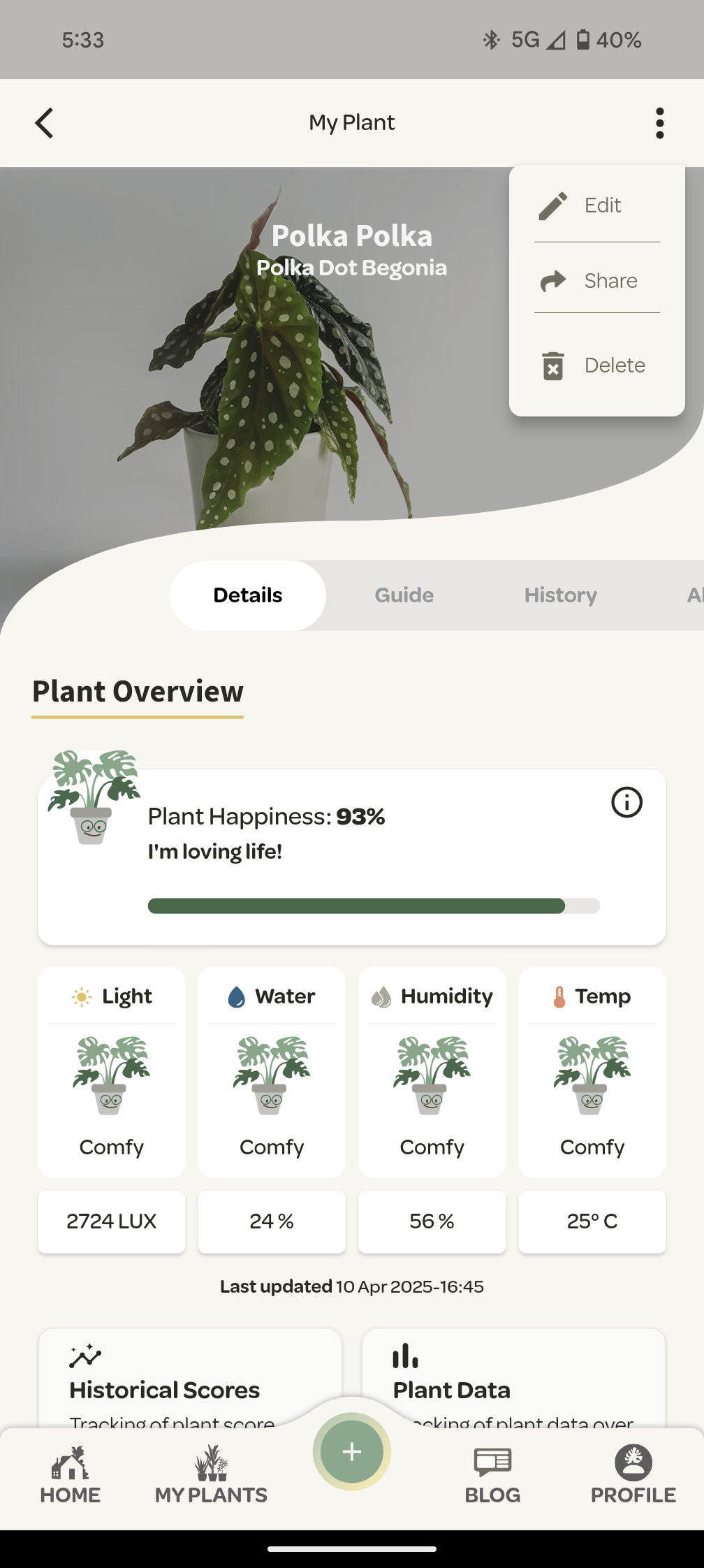
Visit the plant you wish to edit, press the three dots icon in the top right corner and select ‘Edit’.
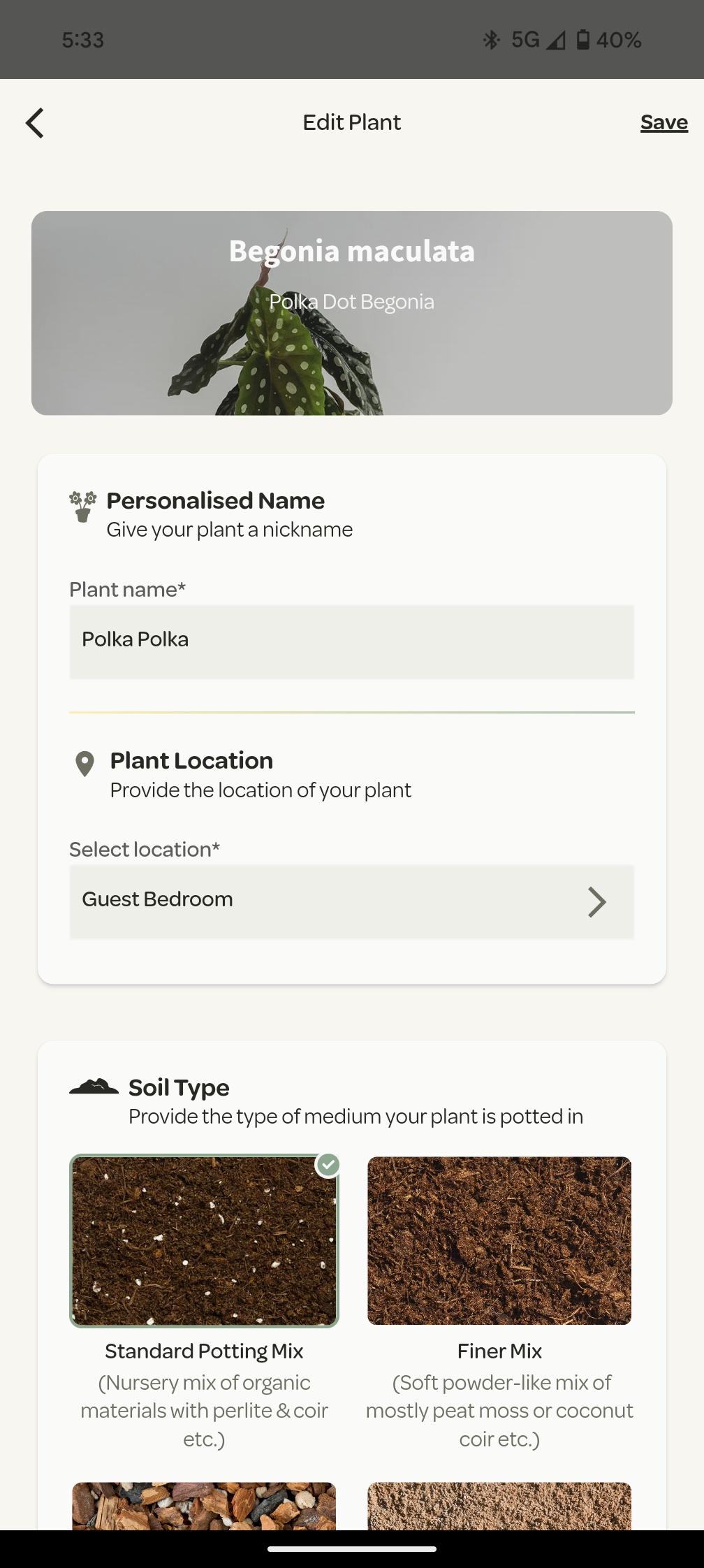
From here, you can change the name of your plant, the location your plant is positioned, change the soil type or growth goals for the plant, and/or change the cover photo.
Add An Event
As your plant grows, you may wish to add key events and milestones to your plants journey such as new leaves, a repotting or pests/diseases.
Watering events are automatically added for those with a Willow Sensor and fertiliser events are added when you check-off your fertiliser schedule.
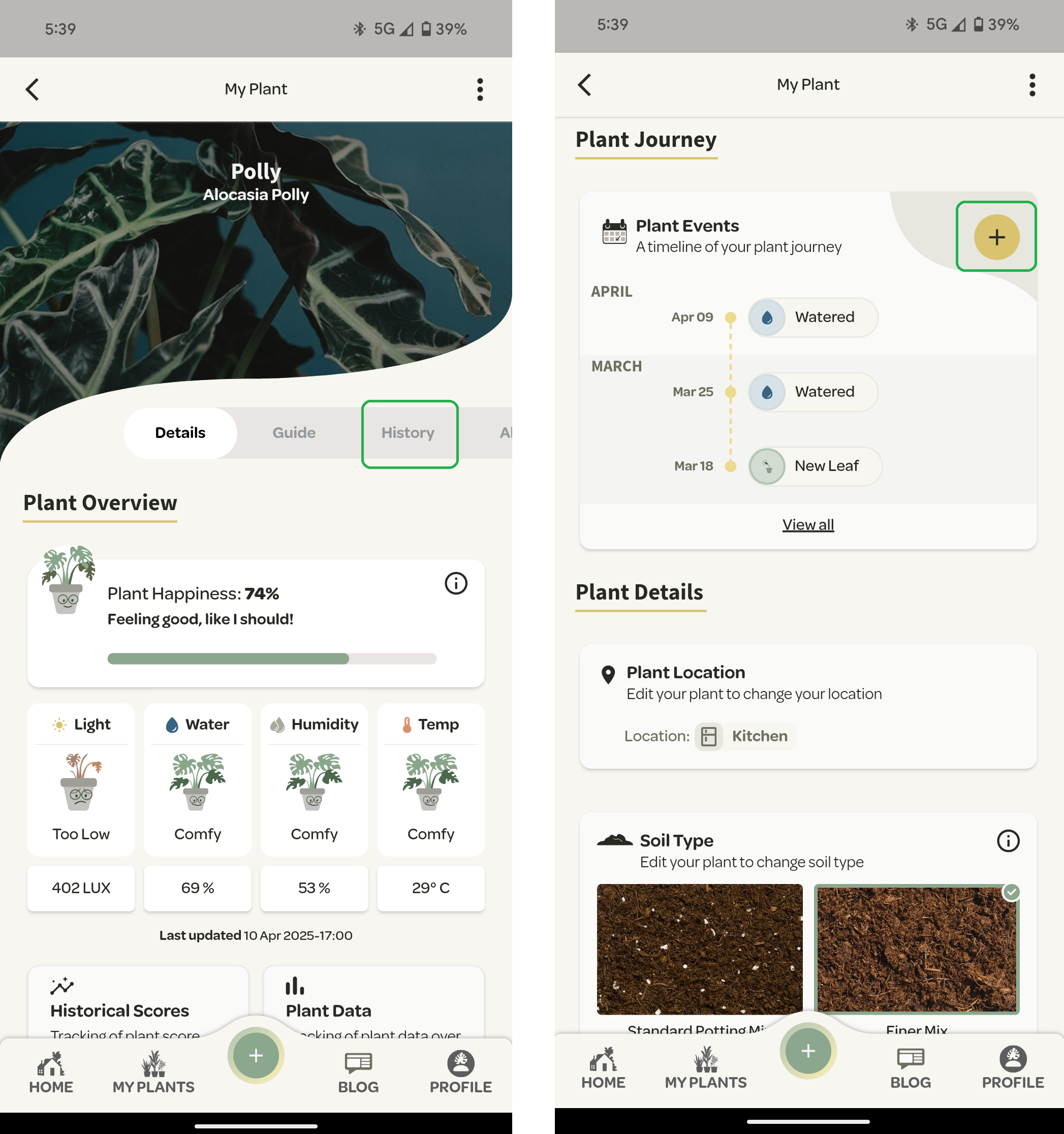
Events can be added from the 'History' tab on your plants or within your 'Plant Details' tab. Just scoll down past your Plant Overview. .
Here you will be prompted to add the date of the event and the event type. You can also create a custom event by selecting the ‘other’ icon and typing in the event.
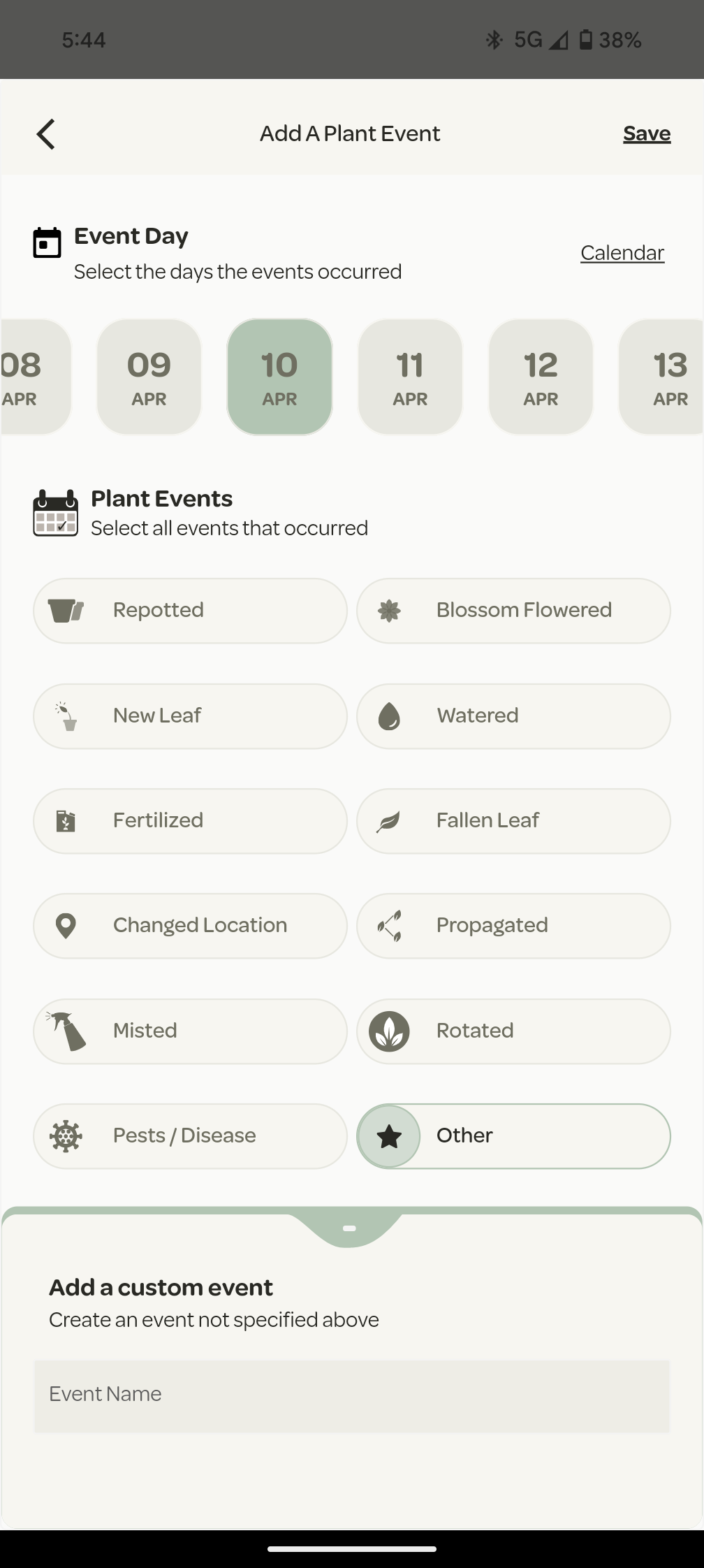
Once completed, hit the 'Save' button in the top right. You can view your full history by selecting ‘History’ tab.
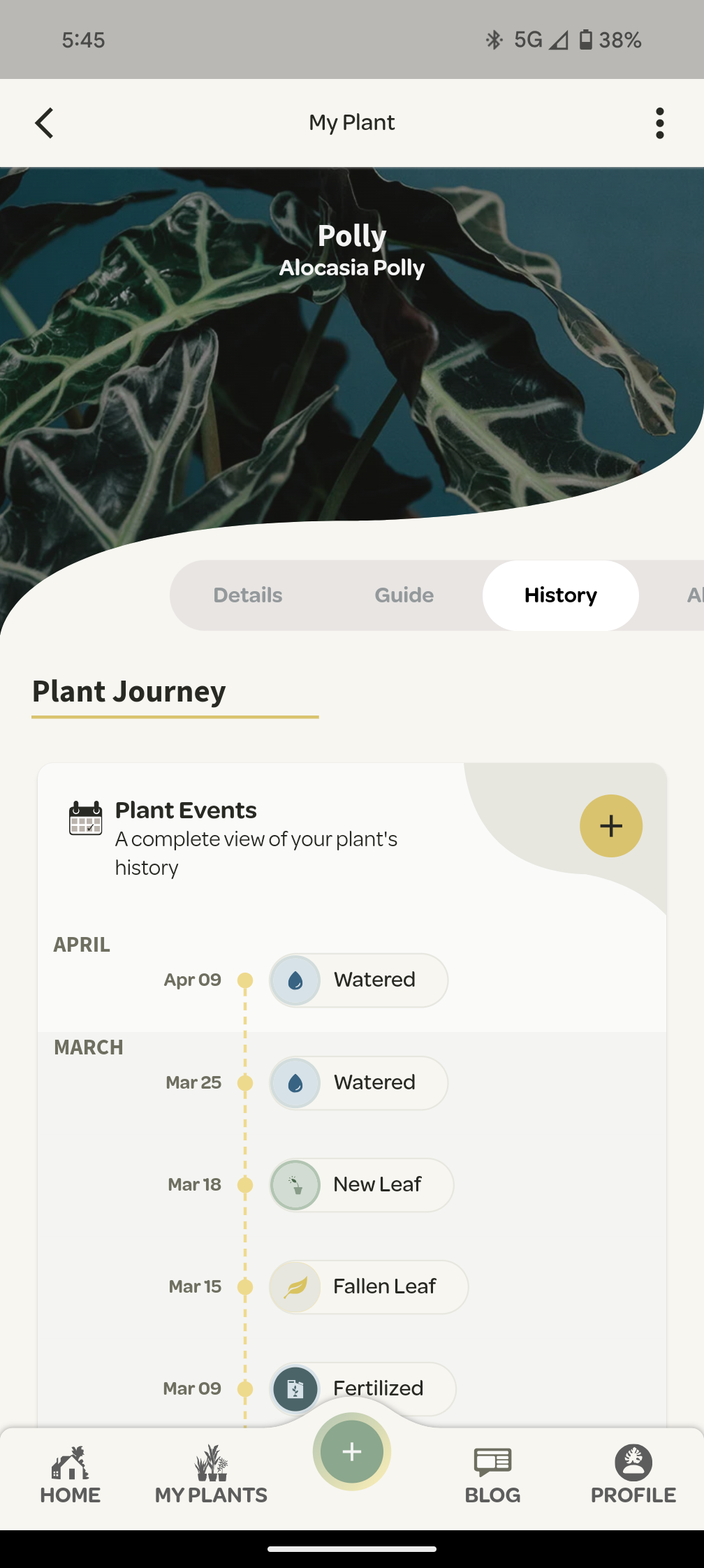
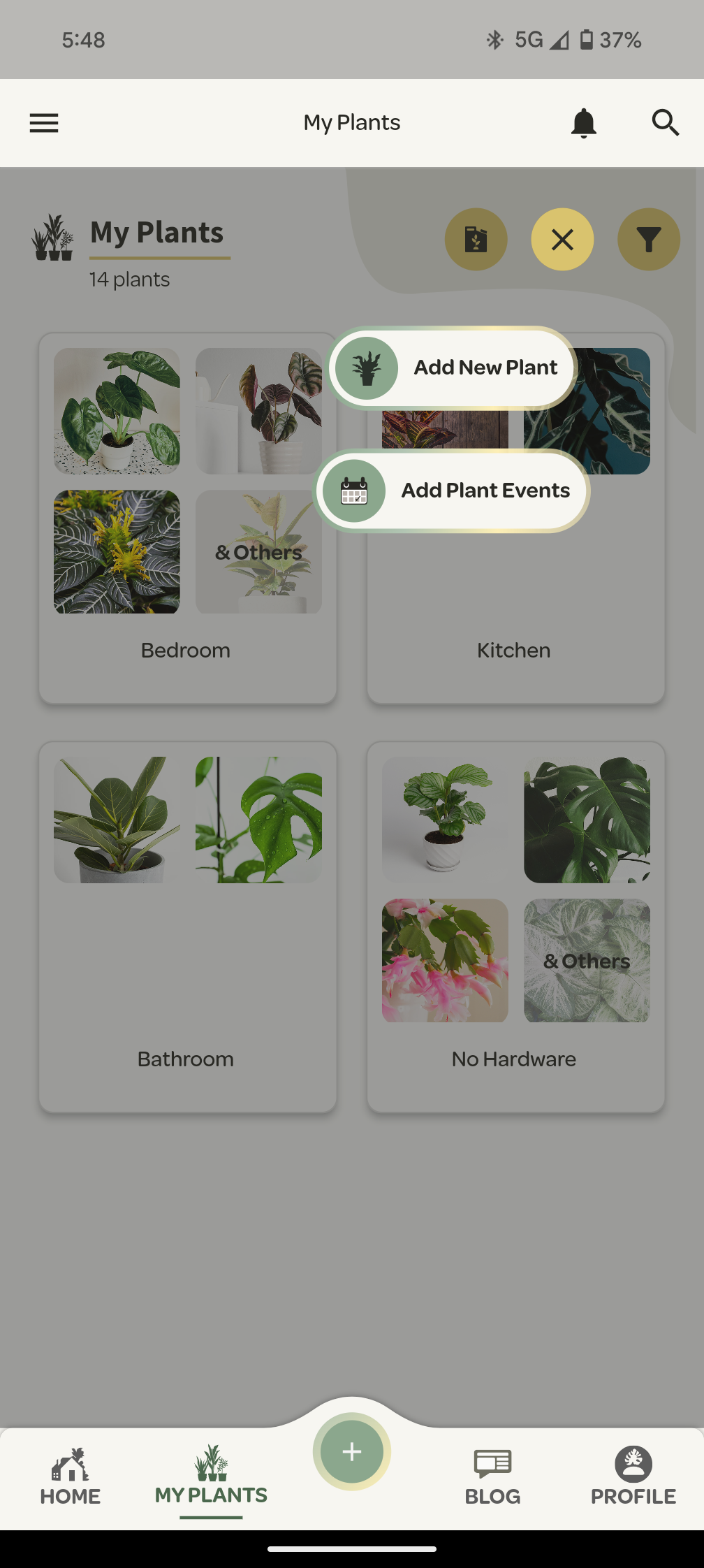
You can also add events to multiple plants at the same time. Navigate to your 'My Plant' section and select the '+' icon in the top right and 'Add Plant Events'.
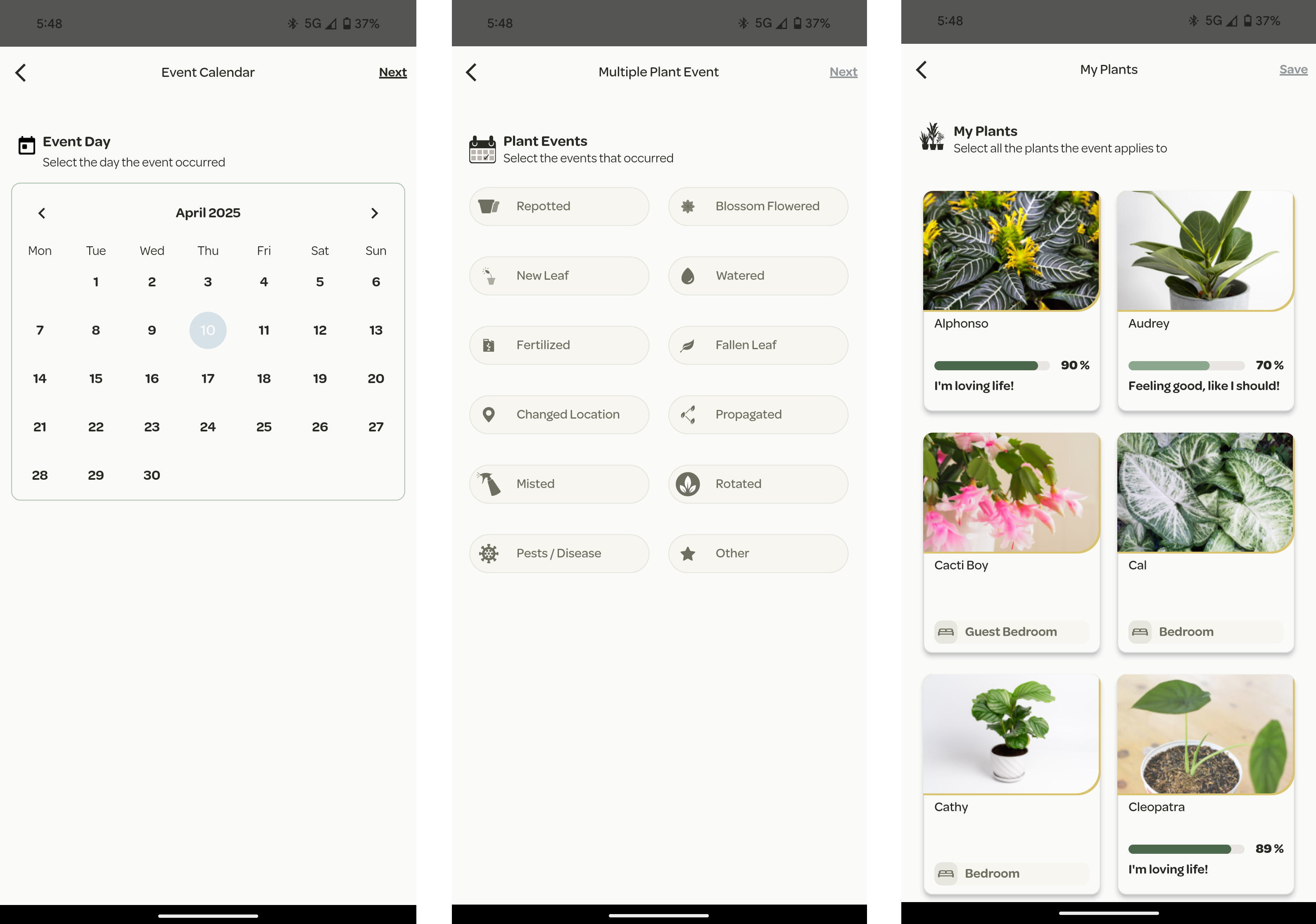
Then select the date, the event and the plants. Simple.
Add A Note
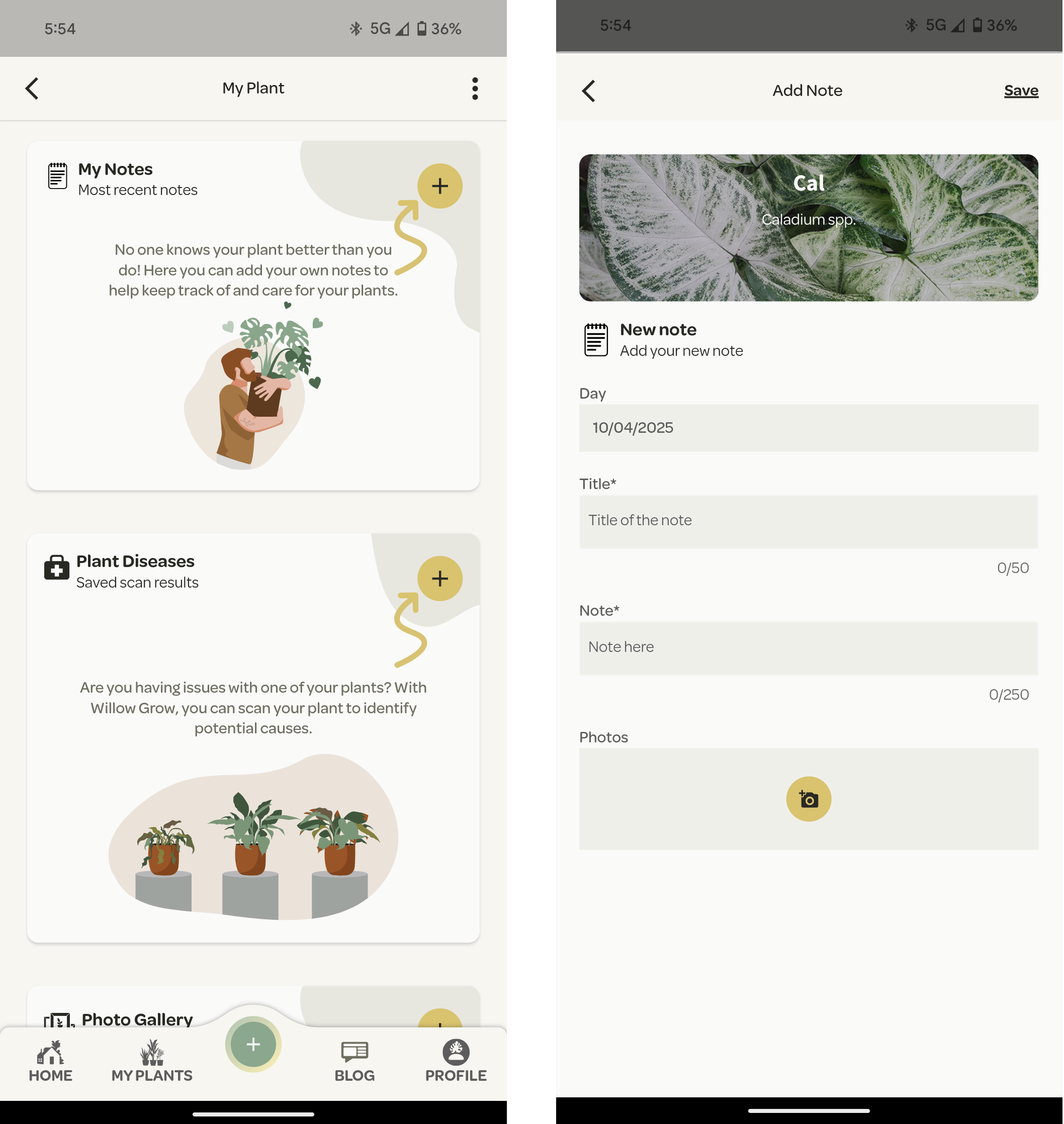
When visiting your plant details, scroll down to the ‘My Notes’ section and press the yellow ‘+’ button. Here you will be prompted to add a title, the note itself, and any photos you may wish to attach to the note.
Add A Photo
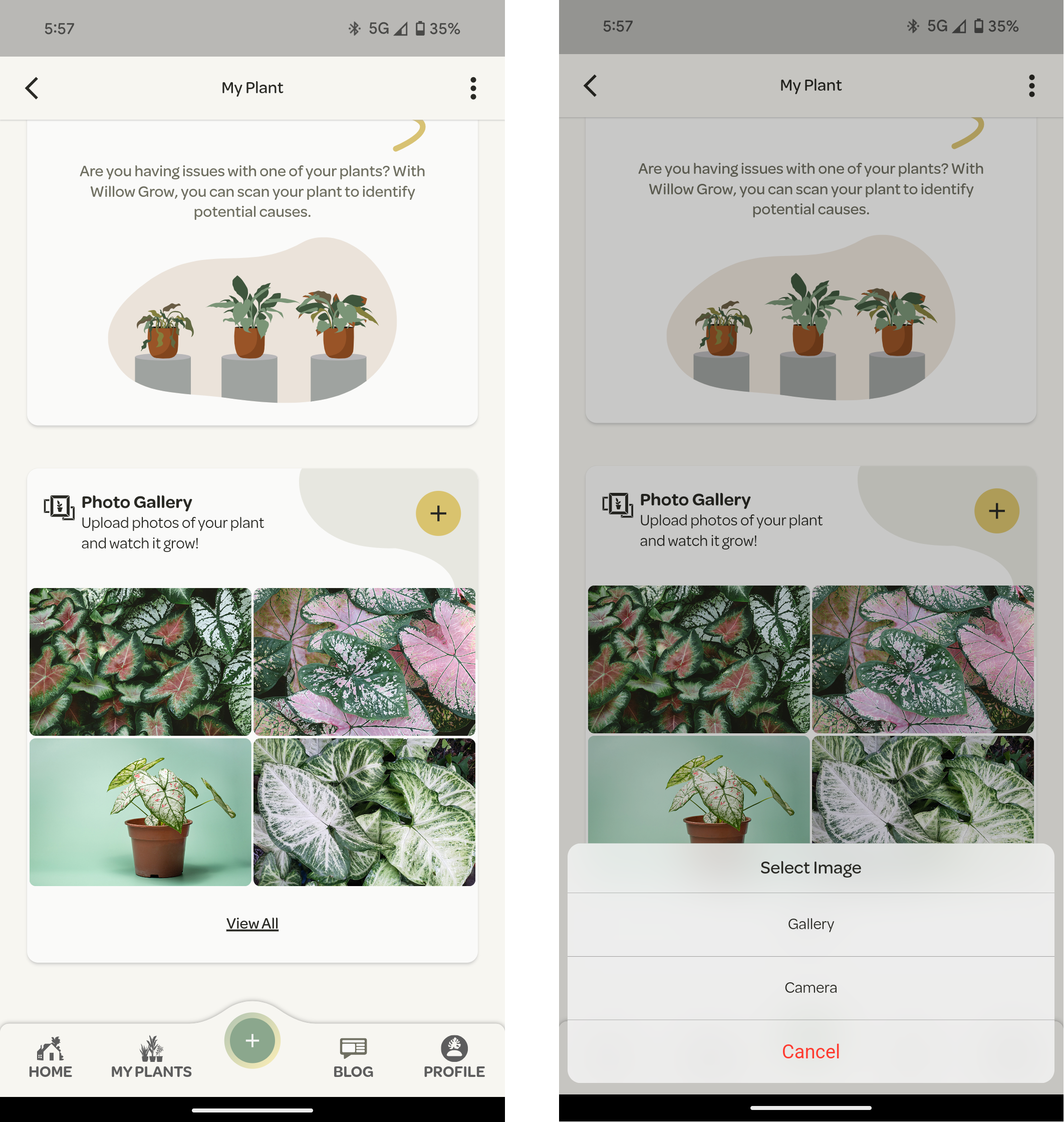
When visiting your plant details, scroll down to the ‘Photo Gallery’ section and press the yellow ‘+’ button. You can either add a photo from your phone’s gallery or take a new one.